Processor
NOMINAL0%CPU 0%GPU 0%Load avg 0.00
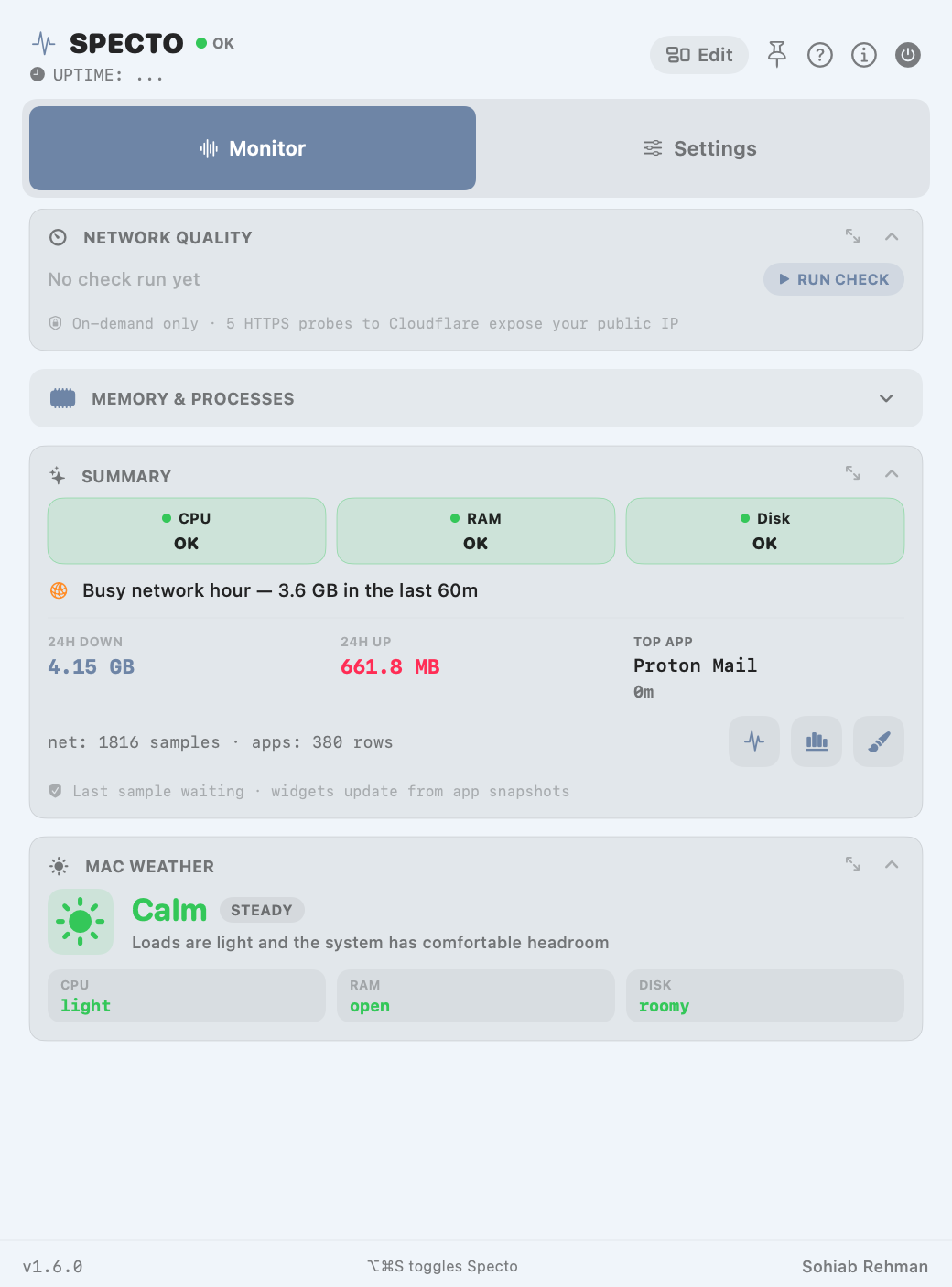
CPU, memory, disk, network, battery, GPU, temps and fans — live in the menu bar, with a card dashboard you can rearrange, expand, and put on your desktop. Everything stays on your Mac.
Live demo
A simulation of Specto running right here in your browser. Pick a workload and watch every card react — then scrub the charts, link them, or rearrange the board.

Simulated data · nothing is read from your device
Features
Glance at the menu bar, open the board when something looks off, and get straight to the card — or the app — that explains it.
One compact strip or separate sensors, with optional sparklines and smart hide. Start from Compact, Detailed, or Custom profiles, and pick which drive the disk reading follows.
Drag, collapse, hide, or switch half and full width in a calm Edit mode. Add Top Apps Today, Disk Activity, Battery Power, Network Quality, System, or Alert History when you want them.
Expand opens a wide board with a vitals strip on top. Tap CPU, GPU, Memory, Disk, Network, or Battery to jump to its card.
Link cards into one 5m / 1h / 6h window. One crosshair scrubs every chart, so you see CPU, network, and disk at the same instant.
A one-word read on your machine’s climate — Calm, Building, Storm — plus Pressure Map, Session Receipt, and Personal Bests.
Package temperatures and fan RPM straight from the sensors. Fanless Macs show temps only. CPU picks up a thermal badge when macOS isn’t at Nominal.
Threshold colours and notifications that open the right card, Activity Monitor, or Disk Utility. Cooldowns, Snooze, and battery guards included.
Turn any volume into a card that keeps its place while unplugged. Open, reveal, eject, or launch Disk Utility from the row.
Adaptive sampling pauses GPU, process, and volume work whenever nothing on screen needs it. Specto measures your Mac without becoming the thing on the chart.
⌥⌘S toggles Specto, ⌘1 / ⌘2 switch tabs, Esc closes. App Intents expose CPU, memory, battery, and network stats to Shortcuts and Siri.
Dashboard
The menu popover and the expanded window each keep their own layout, so the quick glance stays small and the deep dive stays wide.
Network and per-app Resource History are off until you turn them on. When they’re on, they stay on this Mac and prune themselves after 30 days.
Customize
Settings is one searchable list with jump chips for Menu Bar, Desktop Widgets, Dashboard, History, and Health — find the switch, flip it, done.
Translucent panels that follow macOS Light and Dark.
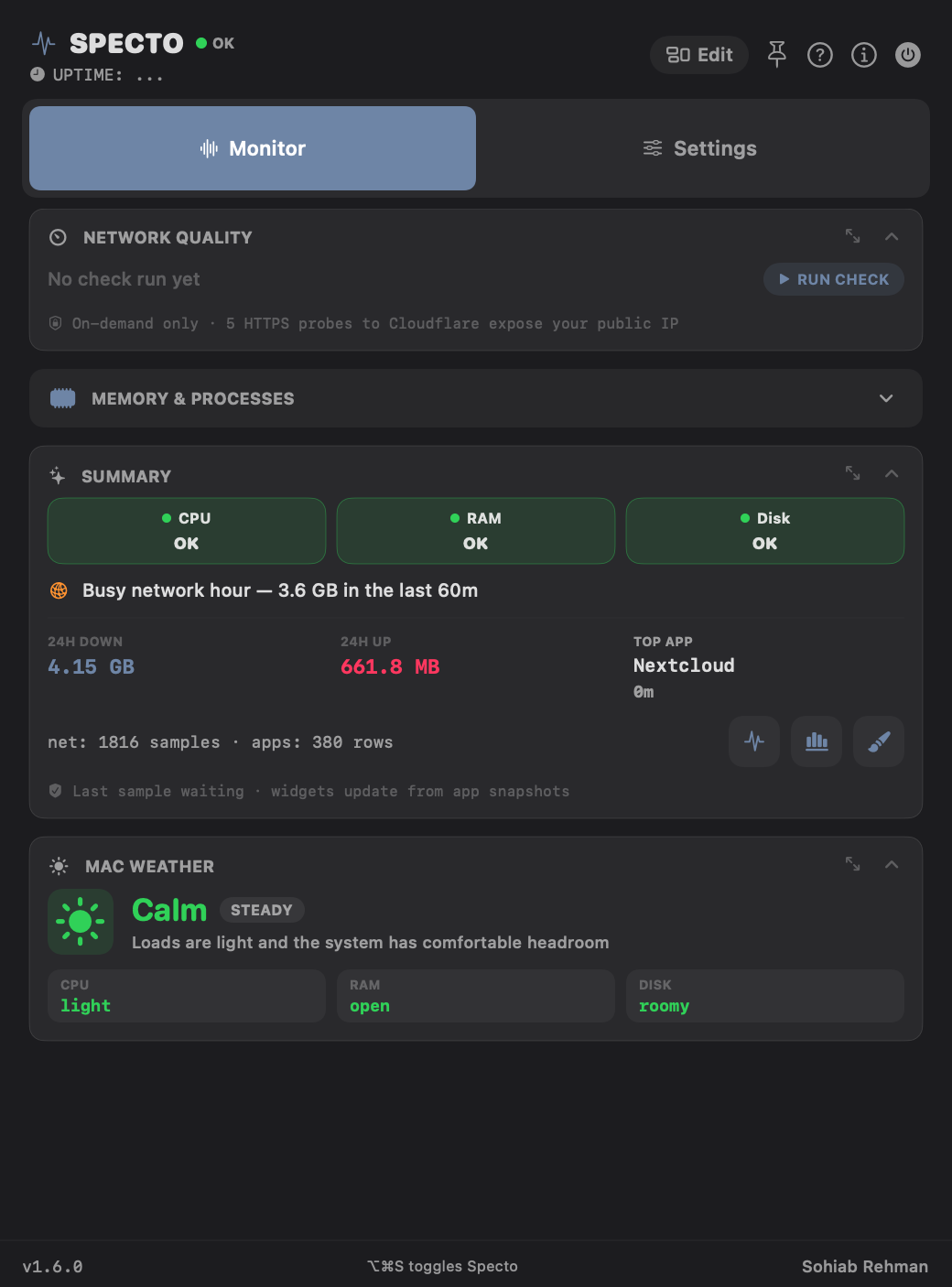
Solid deep-dark panels for high-contrast setups and late nights.
Start from a Quiet, Balanced, or Detailed profile, then set card density from Compact to Detailed. Auto-fit keeps the popover tidy on small screens.
Privacy
No accounts, no in-app analytics, no data sold. Here is everything that can leave your Mac, and when.
CPU, memory, volumes, speeds, battery, and processes are read on device for display — never uploaded as telemetry.
Off by default. Stored under Application Support, auto-pruned after 30 days, and cleared when you turn it off. Personal Bests reset from their card.
Your SSID may appear on screen and in the local widget snapshot. It is never written to history files or sent to a server.
Public IP lookup (ipapi.co) is off by default. Network Quality’s five Cloudflare probes only run when you press Run Check.
What can leave your Mac: Public IP refresh and Network Quality, only when you start them; and Sparkle’s update check against specto.biz/appcast.xml (about once a day) in released builds.
Progress
Specto has been in private testing since July. Here’s what has landed most recently on the way to the first public release.
Expand opens a dedicated window: vitals strip across the top, wide card grid below. Tap a vital to focus its card; GPU tile and mini sparklines; clearer Link vs Expand.
Link cards into one shared time window with a synced crosshair, unlink all from a chip, and scrub Disk Activity alongside everything else.
Desktop widgets reliably get live data, leftover widget placements render again, Settings becomes one searchable list, and App Intents arrive for Shortcuts.
Mac Weather and insight cards, Temps & Fans, Auto-fit, per-drive cards, actionable alerts, CSV export, Sparkle updates, and Glass that follows macOS Light/Dark.
FAQ
Soon. Specto is in private testing and public downloads aren’t available yet. There is nothing to install from this site until launch — anything claiming to be a Specto download before then isn’t from us.
Yes — it’s planned to be free for personal, non-commercial use. No account, no trial, no in-app purchases.
Any Mac on macOS 14 Sonoma or later — Apple silicon and Intel. Temps & Fans shows fan speeds only on Macs that have fans.
Yes. Public builds will be signed with an Apple Developer ID and notarized by Apple, so it opens without security prompts.
Released builds will use Sparkle: choose Check for Updates… or let it check about once a day. Updates are verified with an EdDSA signature before installing.
That’s on the roadmap. Features like Temps & Fans and Force Quit need access the App Sandbox doesn’t allow, so the full app will ship directly from specto.biz first.
Launch Specto once, then right-click your desktop → Edit Widgets → search “Specto”. Right-click the placed widget → Edit Widget to pick CPU, Memory, Overview, and more. If a widget looks stuck, Settings → Desktop Widgets → Fix Widgets refreshes it.
Specto for macOS
Specto is in private testing. Public downloads aren’t available yet — the first release will be announced right here.
Planned: macOS 14 Sonoma or later · Apple silicon & Intel · Free for personal use